Thursday, January 10, 2008

Free Mac Virus Scanner

Free Mac Virus Scanner - ClamXav


I don't really believe in viruses for the Mac, but here is a FREE virus scanner if you really want one.
No sense wasting money for those other programs like Norton and McAffee...
Erich

日本語版:
■[Mac] ClamXav:ウィルスの発見と削除
ClamXav でウィルスが発見されたかどうかを確認するには、スキャン完了後に“スキャンログを表示”ボタンをクリックします。するとコンソールが起動され、このような画面が表示されます。

まず注目すべきなのは “Infected files:”*1行です。この値が“0”以外の場合、スキャンした範囲内にウィルスに感染したファイルが存在しています。数値=感染ファイルの数ですので、図の例では感染ファイルが 1 個あることになります。

マックはあまりウィルスがないけど、念のためにこの無料ソフトを使ったらいいかな。。。
肉足

Wednesday, January 9, 2008

Aurora - Alarm clock for your Mac

Aurora SiteAurora
You can set up your Mac to startup or wake up at a specific time, and you can have your ipod wake you up with music to a specific playlist (did you know that?), but this is the first time I have seen an alarm clock that will wake you up with music for your Mac.
And its FREE!!!
Click here for the siteLooks great!
日本語版:
Macの手書き説明書
OSXのフリーソフト紹介、基本的な使い方を解説。

アラーム時計、スリープタイマ
設定した時間にiTunesで音楽を鳴らせたり、iTunes、QuickTime、DVD Playerのスリープタイマを設定できたりします。
DVDの再生が終わったら、Macをスリープさせるという感じで使ったら便利そうです。
「Wake from Sleep」にチェックを入れておくと、スリープ時でもAuroraから起動させる事ができます。
スリープタイマは「Fall Asleep」より。
ダウンロードは
metaquark.deさんの
「Aurora」>「Download Aurora」より
ダウンロードする

Tuesday, January 8, 2008

Terminal Tweaks

Can your Stacks do THIS?!?
http://www.usingmac.com/2007/11/18/leopard-tweaking-terminal-codes

This is a great tweak for adding a gradient to the stack icons when they are in grid form:
Open Terminal and type this:
defaults write com.apple.dock mouse-over-hilte-stack -boolean YES
(then press enter)
killall Dock
(then press enter again)

love it...

Tuesday, May 8, 2007

Paste Boarder!

Pasteboarder is a cool app that lets you save the last 100 things you have copied to your clipboard so you can reuse them again and again and again....

I am using this RIGHT NOW AS I WRITE THIS BLOG and I LOVE it! Download it today!

ペーストボードサーバーの履歴を取り、ホットキーからの貼付けを行えるようにするアプリケーションです。

今このソフト使ってるよ!すげーな!大好きこれ!ダウンロードしろ!

Thursday, April 5, 2007

MagiCal! Calendar Software

Ever wish you could see the date on your menubar without clicking on the time? Me too! Now you can.
With MagiCal, you can always see the date, and with one click you can get a dropdown menu with the calendar in month form.

You can't see your upcoming events or to do lists on it yet, but it is free...

Macの手書き説明書から:
メニューバーにカレンダ表示
メニューバーに小さなアイコンが表示されて、クリックするとカレンダが表示されます。
正直「システム環境設定」>「日付と時計」で時計をメニューバーに表示すると、クリックするだけで日付が参照できるのでMagiCalを使う必要性はないと思っていたのですが、環境設定でいろいろ表示方法を変えられて便利。

例えばテキストで常に今日の日付を表示させていると、クリックする手間が省けて便利。
「システム環境設定」>「日付と時計」よりもユーザそれぞれの好みで表示方法をかえられるのでMagiCalのほうが気が利いています。

Ta ta,
Erich von Meatleg

Friday, March 16, 2007

Flickr Backup

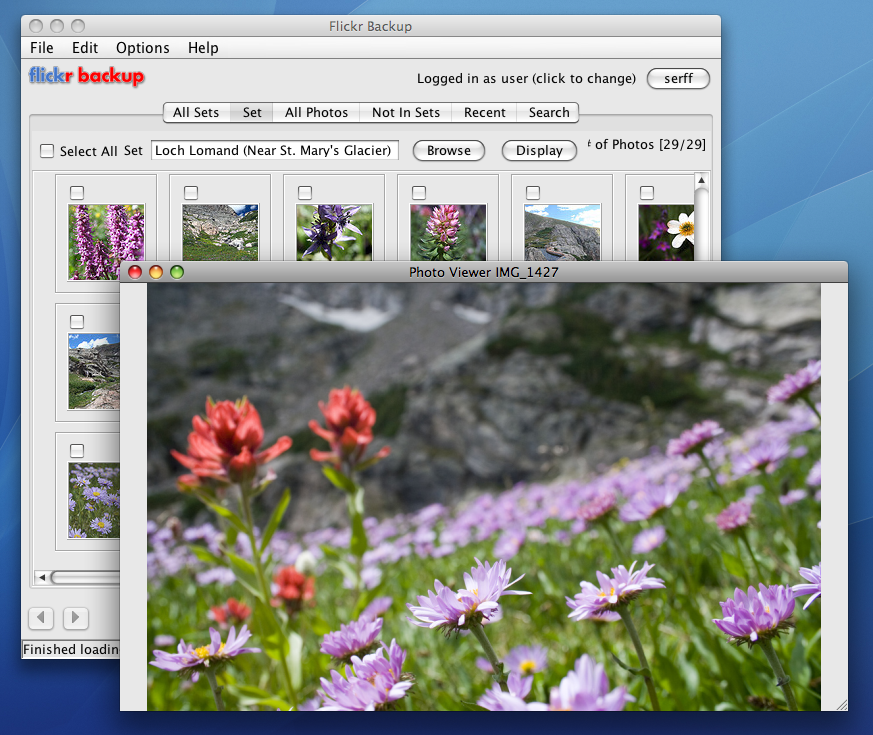
I just had a wipeout of some photos, and I needed to get my Flickr photos back onto my computer. I knew it was going to take a lot of time, and I wasn't looking forward to downloading the files one by one by one by etc...

Then I found Flickr Backup, and downloaded all of my 48 pictures at once!


パソコンのハードドライブからFlickrに載せた写真をなくなったから、メチャ心配してた。サイトから48枚写真を一個ずつダウンロードするのは面倒くさいなぁぁと思ってた。でも、Flickr Backupのソフトで、全写真を同時ダウンロードした。やった!
Netafull.netから

「Flickr Backup」はFlickrに投稿した写真をバックアップするためのソフトです。
ぼくもFlickrには写真をアップロードしていますが、例えば万が一ローカルの写真を失ってしまった場合などに、Flickrから写真のバックアップをするために開発されているツールだそうです。
Flickr Backup - A Java Download Utility for Flickrというエントリーで、Mac OS Xで動作させているスクリーンショットが紹介されています


Ta ta,
Erich von Meatleg

Thursday, March 15, 2007

iPhoto Libraries

Did you know that you can have separate libraries for your iPhoto program? Did you care?
Say for instance you wanna have one, iPhoto library just for family pictures, another one for business (let's say, pictures of all the Koi you sell/eat) and a third one for porn. I mean, when you wanna show pictures of you and your brother to your mom, you dont necessarily wanna show your mother your favorite pictures of Aria Goivanni,do you?

With iPhoto Buddy, its EASY!!!

With iPhoto Buddy, you can easily manage an entire list of iPhoto Libraries, enabling you to quickly and easily open the Library of your choice for viewing/editing/printing in iPhoto. You can easily switch between your multiple Libraries, and iPhoto Buddy will automatically quit iPhoto and instantly re-launch it with the newly selected Library. There is no limit to the number of Libraries, and they can be located in various locations--even on removable or network volumes. Each Library can be assigned its own name that differs from its folder name in the Finder; each Library can be assigned a thumbnail image that can help to remind you of its contents; and each Library can be password protected for privacy/security.

iPhoto Buddy also displays various details about your Libraries without launching iPhoto. Information like each Library's size and image count as well as a complete listing of the Albums, Smart Albums, Folders, Books, Slide Shows, etc. contained therein.

And in keeping with the enhanced integration of the iApps that Apple introduced with the original iLife package, iPhoto Buddy also allows you to open iMovie, iDVD, and iWeb using any of your iPhoto Libraries for importing photos into your Movies, DVDs and websites. In fact with iPhoto Buddy, any application that contains a Media Browser for accessing your iPhoto Library, can used with ANY of your iPhoto Libraries.


iPhoto Buddyで色々な別々のiPhotoのデータベースを作れる。何で使った方がいいの?例えば、一つのiPhotoのデータベースは”自分の撮った写真”を作って、あとは”エロ春画”のiPhotoのデータベースを作ったらいいね。彼女にエロ写真を見られないようにね。(^o^)
このリンクで、ちゃんと日本語で説明してくれるやで。
Ta ta,
Erich von Meatleg